CPI Value
The CPI Value section retrieves the CPI value for a specific month and shows how the CPI changed from the previous month.
The selected country and CPI series at the top of the finPack task pane are used for the calculation.
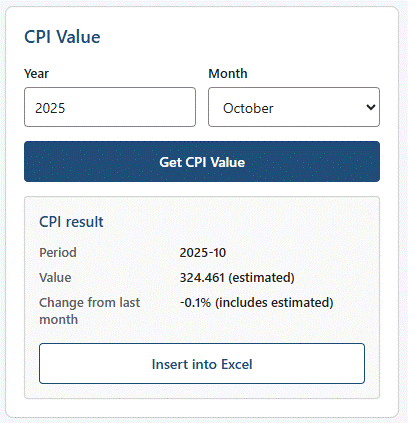
Retrieve a CPI value
- Select a Country.
- Select a CPI Series.
- In the CPI Value section, enter the Year.
- Select the Month.
- Select Get CPI Value.
finPack displays the result below the input fields.
CPI result
The result contains:
| Field | Description |
|---|---|
| Period | Selected CPI period in YYYY-MM format. |
| Value | CPI value for the selected period. |
| Change from last month | Percentage change from the immediately preceding month. |
For example:
Period                  2026-09
Value                   170.0
Change from last month  0.1%
Change from last month
Change from last month compares the selected CPI value with the CPI value for the immediately preceding month.
The result is displayed as a percentage rounded to one decimal place.
This measure is different from CPI Increase, which compares the selected month with the same month one year earlier.
Estimated observations
When the selected CPI observation has not been published by the provider but has been estimated using the provider's recommended methodology, finPack identifies the value as estimated.
For example:
Value 324.461 (estimated)
CPI values are displayed using the precision configured for the selected CPI series and observation period.
If the monthly-change calculation uses one or more estimated observations, the change is identified as includes estimated.
For example:
Change from last month -0.1% (includes estimated)
Normal published observations do not display an estimated indicator.
Insert the value into Excel
To insert the displayed CPI value into the current Excel selection:
- Select a single cell in the workbook.
- Select Insert into Excel.
finPack writes the CPI value to the selected cell as a numeric value.
If more than one cell is selected, finPack does not insert the value.
Insert into Excel currently inserts the CPI value itself. A future version may provide an option to insert the corresponding FINPACK.CPI formula instead.
Using a worksheet function instead
If the CPI value should remain formula-driven in the workbook, use FINPACK.CPI.
For example:
=FINPACK.CPI("ca","all-items",2026,9)
This retrieves the Canadian All-Items CPI for September 2026.
See FINPACK.CPI for complete function documentation.
Related topics
- CPI Data — Browse a CPI series and insert its history into Excel.
- CPI Average Change — Compare consecutive average CPI periods.
FINPACK.CPI— Retrieve a CPI value directly from an Excel formula.FINPACK.CPIINCREASE— Calculate the CPI increase from the same month one year earlier.